1. Launch Adobe Acrobat application and select a recent file to open. If you currently have the application open, then proceed to step 2

2. If you have the updated version of Adobe, the interface will look like this. Click on the Menu option in the top left of the screen. Then select the option Disable new Acrobat

3. Select Restart from the pop up and Adobe will relaunch
*Note, if you have multiple tabs open, Adobe will relaunch and open up the current and existing tabs and you will not lose any changes previously made

4. Then the classic version of Adobe Acrobat will look like this

Tip: If you require further assistance, please reach out to our Support Team.
Click on the Contact Support tab in the upper right corner to submit a support request.
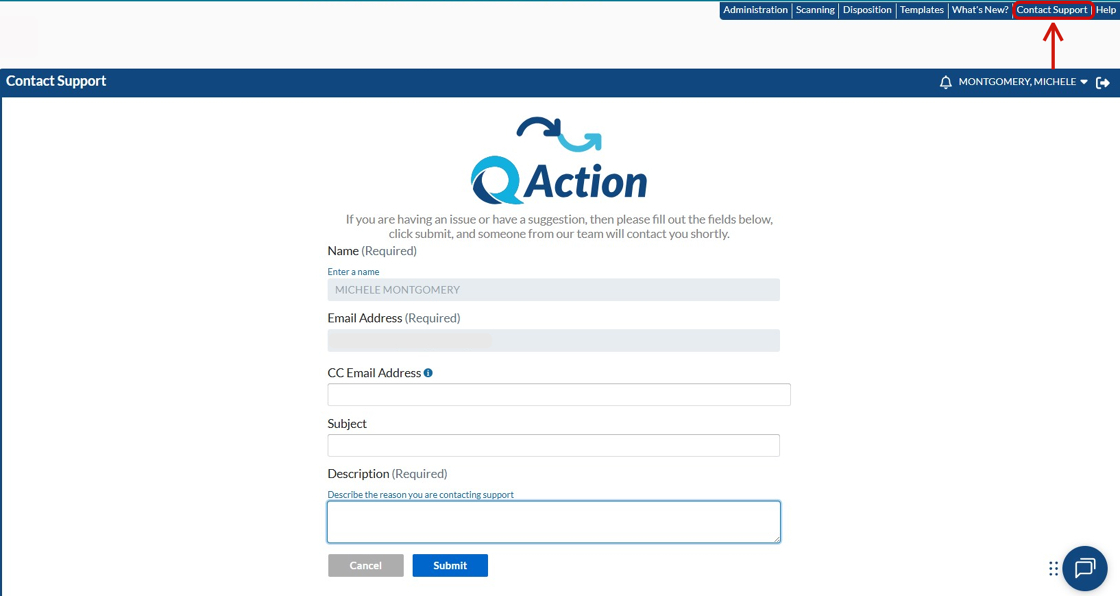
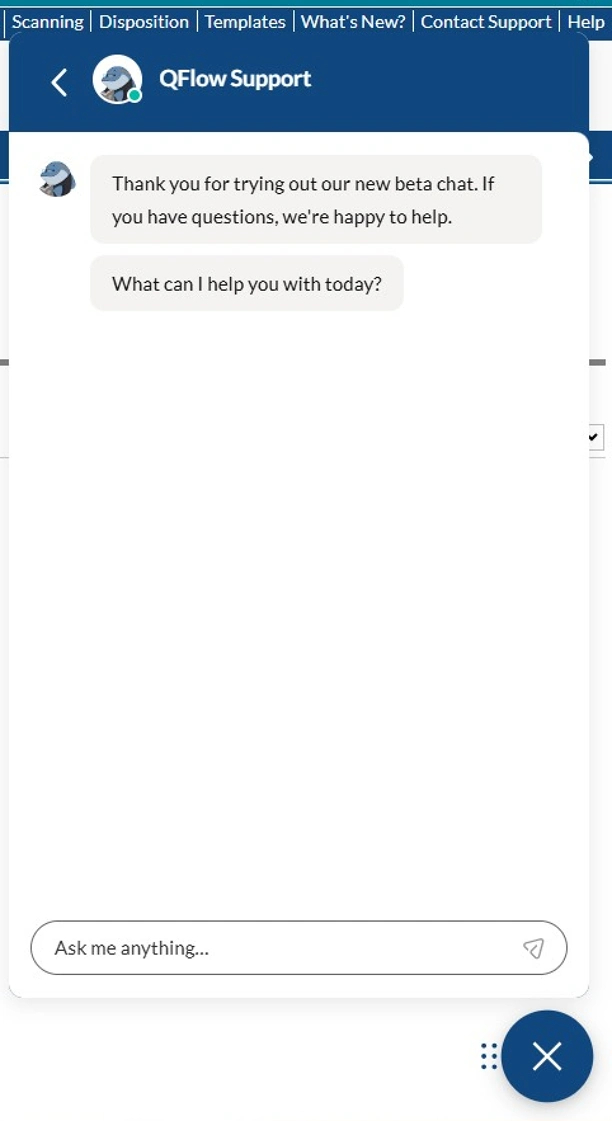
You can also initiate a chat by clicking the QAction Support Bot icon.