Getting Started with the Modern QAction UI
The Modern UI is an in-progress, refreshed QAction experience designed to make your day-to-day work faster and more intuitive. Tasks, documents, and workflows all live in a cleaner layout that's easier to scan and act on.
You're in control. You can try the Modern UI at your own pace and switch back to the classic view any time.
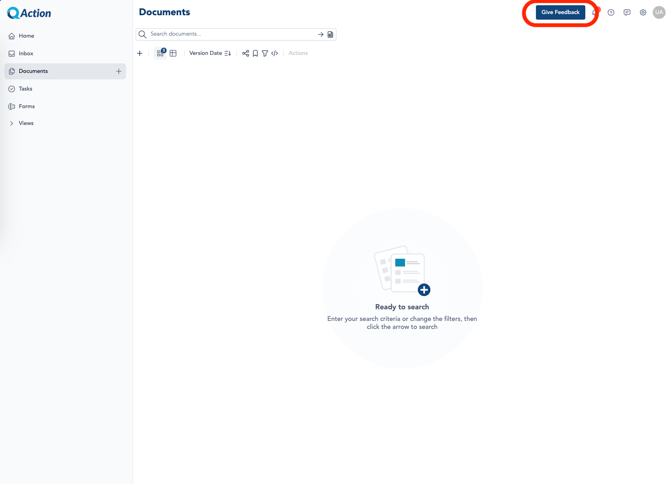
Feedback and support
This is just the beginning. The Modern UI will keep evolving based on what you tell us. If something feels off, or if there's a piece of QAction you'd love to see improved, we want to hear from you.
For guides, updates, and help articles, visit support.qflow.com.
Turn on the Modern UI
-
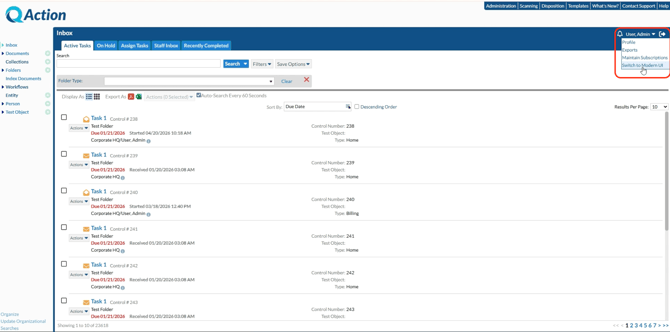
In QAction, open your user profile in the top-right corner.
-
Click Switch to Modern UI.
-
The page will reload into the new experience.
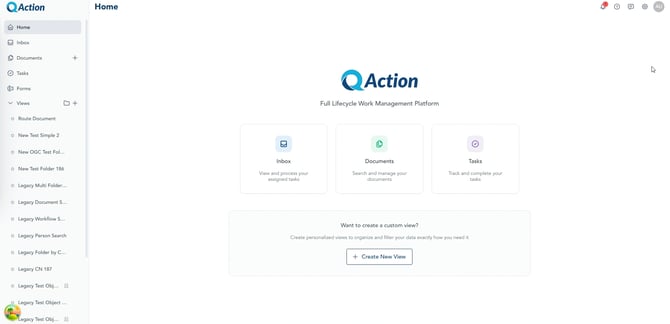
Once it loads, you'll land on the Modern UI home.
Tour of the new layout
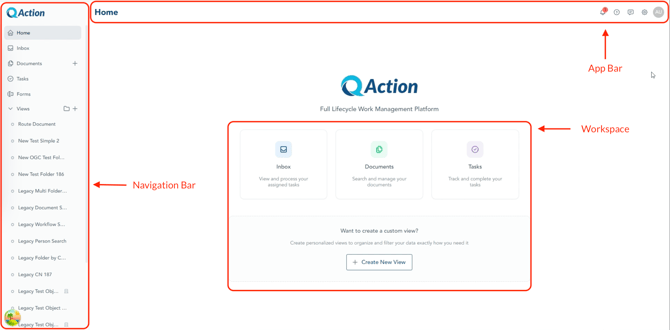
The Modern UI is organized into three regions:

-
Navigation bar (left) — your entry points into QAction
-
App bar (top) — page context, notifications, help, and your profile
-
Workspace (center) — where you do the actual work
Navigation bar
The navigation bar on the left is your jumping-off point. From here you can reach:
-
Home — your dashboard
-
Inbox — tasks and action items assigned to you
-
Documents
-
Tasks
-
Forms
-
Any custom views you've set up
Want more room for your work? Collapse the navigation bar to tuck it out of the way. Hover the left edge to bring it back, or click the toggle to restore the full view.
App bar
The app bar runs across the top of the screen. From left to right, you'll find:
-
The page title showing where you are
-
The notification bell
-
Help options, including the help chat
-
Settings
-
Your user profile, where you can view your account, switch to dark mode, see keyboard shortcuts, and more
Workspace
The center of the screen is your main workspace. This is where you interact with tasks, documents, and data. The layout is designed to make information easy to scan and actions easy to take.
Inbox
Your Inbox is the central hub for tasks and action items assigned to you. At a glance you can see each task's due date, priority, and status, and you can search, sort, and filter to focus on what matters most.
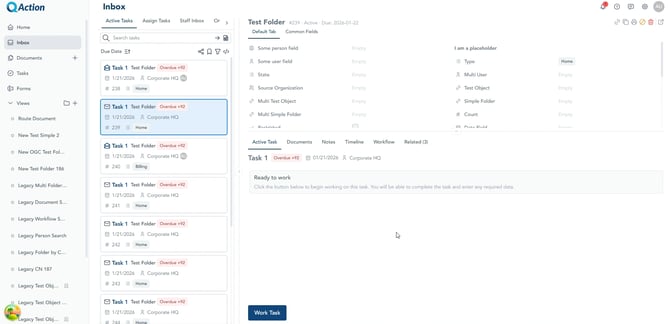
The Inbox uses a split layout:
-
Left pane — the list of tasks. Click any task to open it.
-
Right pane — the full object details for the selected task, including:
-
Tasks
-
Documents
-
Notes
-
Timeline
-
Workflow
-
Related items
-
Object information across the top
-
Documents
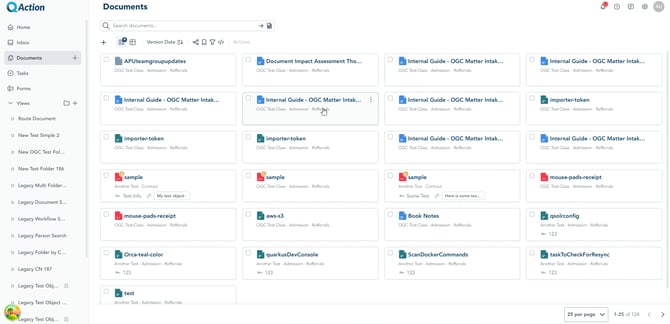
The Documents area is where you browse, search, preview, and edit documents without ever leaving QAction.
How information opens
The Modern UI opens content in a few different ways depending on the context:
-
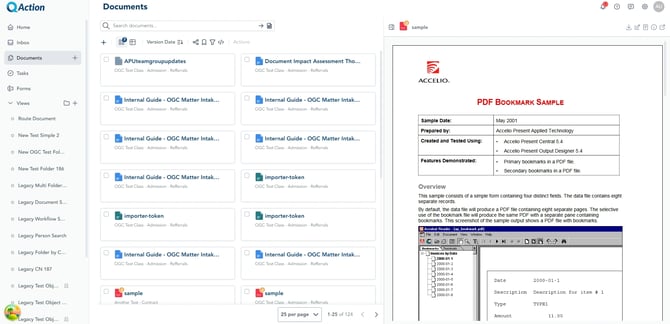
Drawers — slide in from the right for focused work without leaving the page.
-
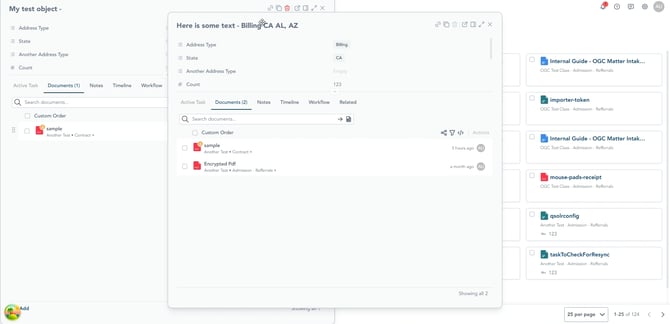
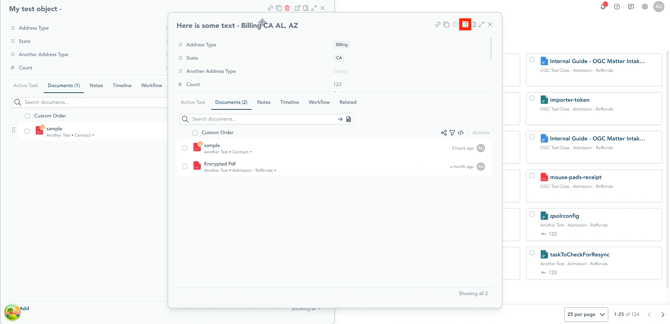
Dialogs — open as floating windows. You can have multiple dialogs open at once and snap them to the corners of your window.
-
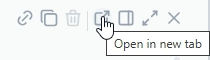
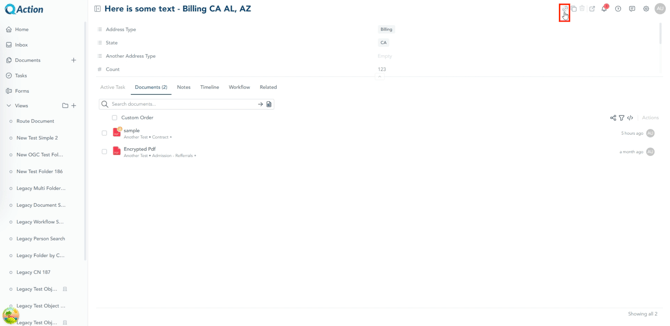
Open in a new tab — drawers and dialogs include a link that opens the same content full-page in a new tab.
-
Copy link — grab a direct link to any item so you can share it.
Getting started
The best way to get comfortable is to use the Modern UI for your real work. A good starter routine:
-
Check your Inbox.
-
Open a task and walk through its details.
-
Review a document.
Take your time. Poke around the layout and get a feel for where things live. You're not locked in — you can switch back to the legacy experience at any point while you're getting comfortable.
Switch back to the legacy view
If you need the classic experience, you can return to it in two clicks:
-
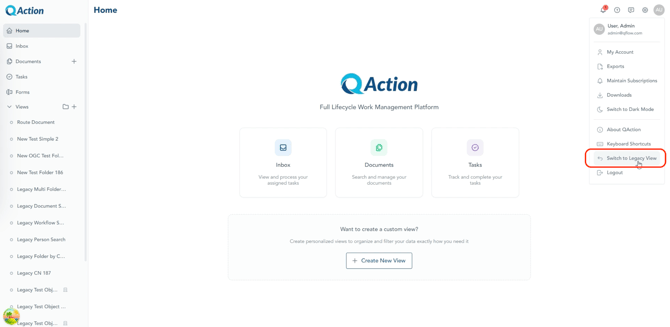
Open your user profile in the top-right corner.
-
Click Switch to Legacy View.
-
The page will reload into the legacy QAction experience.

We want your feedback!
If you have suggestions, or want to see something specific represented in the Modern UI please take our short feedback survey.