
What is the Modern QAction UI?
The Modern QAction UI is a redesigned interface that makes it faster and easier to manage tasks, documents, and workflows. It features a cleaner layout, improved navigation, and more efficient ways to view and act on information.
Is the Modern UI replacing the legacy QAction interface?
No, the Modern UI is not replacing the legacy interface yet. Users can switch between the Modern UI and the legacy QAction experience at any time.
How do I switch to the Modern QAction UI?
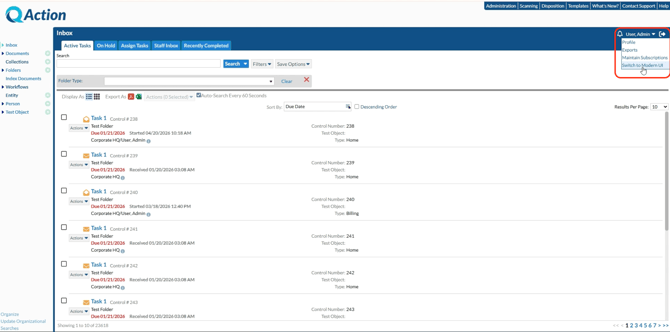
To enable the Modern UI in QAction:
- Open your user profile in the top-right corner
- Click Switch to Modern UI
- The page will reload into the new interface
How do I switch back to the legacy QAction UI?
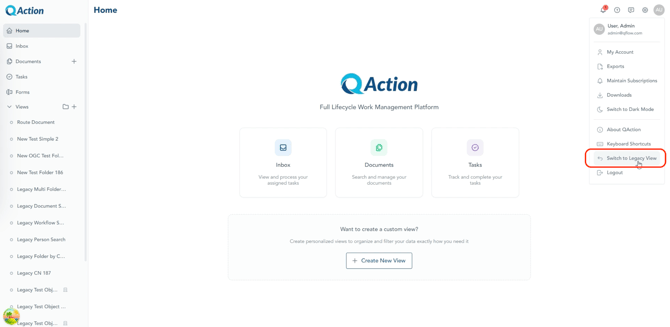
To return to the legacy interface:
- Open your user profile
- Click Switch to Legacy View
- The page will reload
Will switching between Modern UI and legacy UI affect my data?
No, switching between interfaces does not affect your data. All tasks, documents, and workflows remain the same.
What are the main features of the Modern QAction UI?
The Modern UI includes:
- A simplified navigation structure
- A split-view Inbox for task management
- Built-in document preview
- Drawers and dialogs for faster workflows
- Reduced page reloads
How is the Modern QAction UI organized?
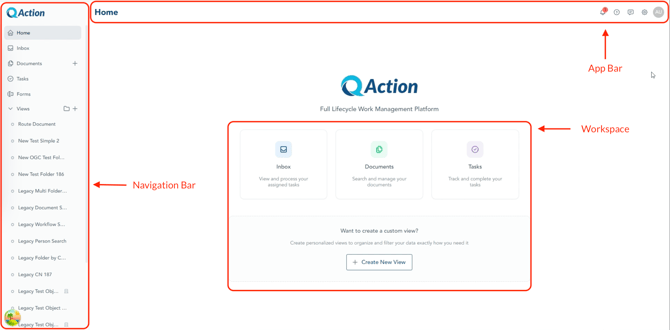
The Modern UI is organized into three main areas:
- Navigation bar (left): Access Inbox, Documents, Tasks, and more
- App bar (top): Notifications, help, settings, and profile
- Workspace (center): Where you view and complete work
Where is the Inbox in the Modern UI?
The Inbox is located in the left navigation bar. It contains all tasks and action items assigned to you.
How does the Inbox work in the Modern UI?
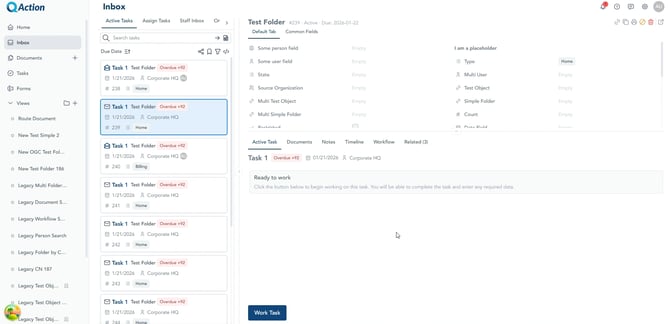
The Inbox uses a split layout:
- Left side: list of tasks
- Right side: full task details
This allows you to review and act on tasks without leaving the page.
Can I filter or search tasks in the Modern UI?
Yes, you can search, sort, and filter tasks by status, priority, and other criteria to quickly find what you need.
How do I view task details in the Modern UI?
Click any task in the Inbox to open its details in the workspace. You’ll see documents, notes, workflow steps, and related items.
How do documents work in the Modern QAction UI?
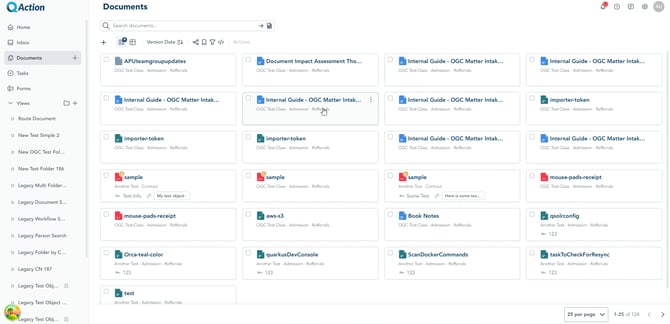
The Documents section allows you to browse, search, preview, and manage files without leaving the application.
Can I preview documents without downloading them?
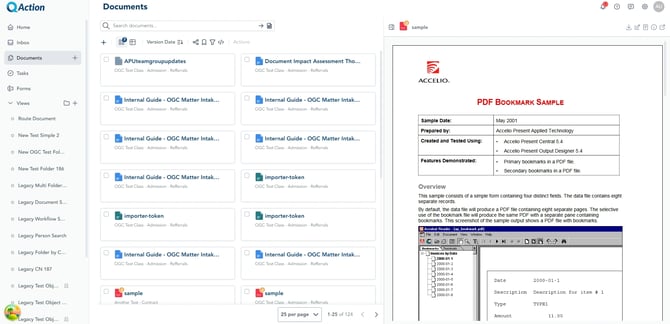
Yes, the Modern UI includes a built-in Document Viewer so you can preview files directly in your browser.
Can I still download or print documents?
Yes, document actions like download and print are available from the document toolbar.
What is a drawer in the Modern UI?
A drawer is a panel that slides in from the right side of the screen, allowing you to view or edit content without leaving your current page.
What is a dialog in the Modern UI?
A dialog is a floating window used for actions like editing or confirming changes. Multiple dialogs can be open at once.
Can I open items in a new tab?
Yes, drawers and dialogs include an option to open the same content in a full-page view in a new browser tab.
Can I share links to tasks or documents?
Yes, you can copy a direct link to any item and share it with other users.
What is the app bar in the Modern UI?
The app bar is located at the top of the screen and includes:
- Page title
- Notifications
- Help options
- Settings
- User profile
Can I collapse the navigation bar?
Yes, the navigation bar can be collapsed to create more workspace and expanded again when needed.
Does the Modern QAction UI support dark mode?
Yes, dark mode is available and can be enabled from your user profile.
Is the Modern UI faster than the legacy interface?
Yes, the Modern UI is designed to reduce page reloads and improve performance by keeping work within a single workspace.
Why does content open in different ways (drawer, dialog, or tab)?
The Modern UI uses different layouts depending on the task:
- Drawers keep you in context
- Dialogs support focused actions
- Tabs provide full-page views
I don’t see the Modern UI option. How do I get access?
If you don’t see the option to switch, contact your system administrator to confirm availability.
What should I do if something isn’t working in the Modern UI?
Try refreshing your browser first. If the issue continues, contact your administrator or QFlow Support.
How can I provide feedback on the Modern UI?
You can submit feedback through the provided survey or contact your support team. Feedback helps improve future updates.
What is the best way to get started with the Modern UI?
Start with your daily workflow:
- Check your Inbox
- Open a Task
- Review a Document
This helps you quickly get comfortable with the layout.
Can I switch back if I don’t like the Modern UI?
Yes, you can switch back to the legacy view at any time from your user profile.
How do I edit a document in Word or Adobe in the Modern UI?
Download the document from QAction and open it in Microsoft Word or Adobe Acrobat. After making changes, save and upload the updated file back into the system.
How do I sign a PDF in the Modern QAction UI?
You can sign PDFs in two ways:
- QSign: Sign directly within QAction if available in your workflow
-
Adobe Acrobat: Download, sign in Adobe, and upload the file
Should I use Adobe or QSign to sign documents?
Use Adobe Acrobat for advanced editing and annotation. Use QSign for a streamlined, in-system signing workflow.
What is QSign in QAction?
QSign is QAction’s built-in electronic signature feature that allows you to sign documents directly within the system without downloading them.
Why can’t I edit documents directly in QAction like before?
The Modern UI is designed as a cloud-based experience. Full editing is handled in native applications like Word and Adobe to preserve functionality and performance.
Why does the document preview not allow editing?
The preview is designed for viewing only. For full editing capabilities, use Word or Adobe.
I don’t see the option to sign using QSign. Why?
QSign availability depends on your organization’s configuration. Contact your administrator if you need access.
Can I upload a signed document after using Adobe?
Yes. After signing in Adobe, upload the updated file back into QAction.
How can I avoid working in small pop-ups or windows?
Use the Open in New Tab option to work in a full-page view.
What is the fastest way to edit documents in QAction?
The fastest workflow is:
-
Download the document
-
Edit in Word or Adobe
-
Upload the updated version