
Work with Multiple Objects Using Dialogs in the Modern QAction UI
The Modern UI introduces flexible viewing options such as drawers, resizable dialogs, and full-page views to support different ways of working.
Dialogs are a core feature of the Modern QAction UI, designed to help you review, compare, and manage work without constantly switching between screens.
Instead of opening records one at a time, dialogs allow you to keep multiple tasks, documents, and records visible and accessible throughout your workflow.
What Are Dialogs?
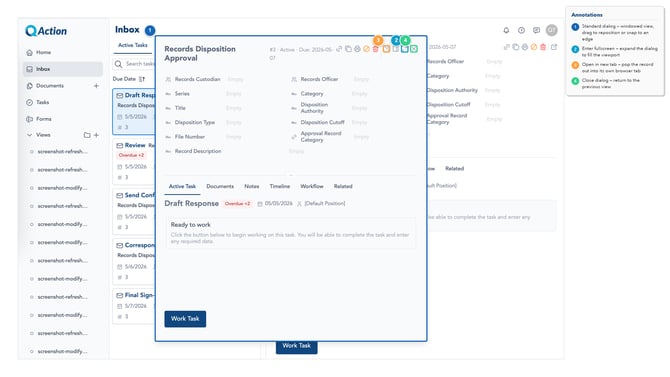
Dialogs are movable, resizable windows that open within the Modern QAction workspace.
Unlike traditional pop-up windows, dialogs are designed to support multitasking and contextual work.
With dialogs, you can:
-
Quickly review records without leaving your current page
-
Open multiple items at the same time
-
Compare records side-by-side
-
Reference supporting documents while completing tasks
-
Resize and arrange windows to fit your workflow
Dialogs help reduce unnecessary navigation and allow you to stay focused while working across multiple records.
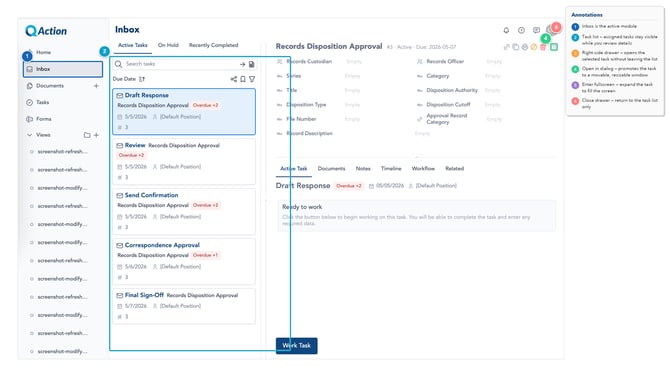
Open Records in Different Ways
The Modern UI provides several ways to interact with records depending on how you prefer to work.
You can open items as:
-
Drawers — slide-in panels for quick access
-
Dialogs — floating windows for multitasking
-
Multiple dialogs — independent windows for working across records
-
New browser tabs — full-page experiences for focused work
These options allow you to choose the best layout for the task you are performing.
Arrange Your Workspace
Dialogs can be moved and resized to create a workspace that matches your workflow.
You can:
-
Drag dialogs anywhere on the screen
-
Resize dialogs to focus on key information
-
Keep multiple records open simultaneously
-
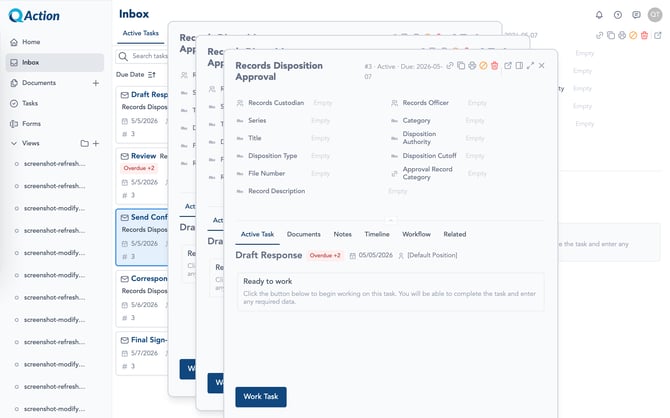
Layer dialogs on top of each other
This flexibility makes it easier to manage related records and complete work more efficiently.
Snap Dialogs into Layouts
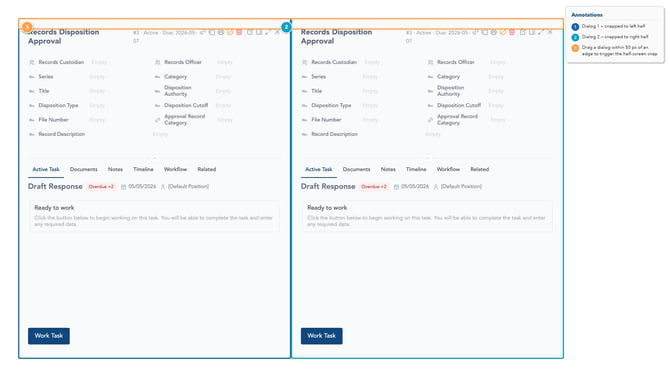
Dialogs can snap to screen edges and corners to create organized layouts.
Side-by-Side Comparison
Use snapped dialogs to compare records or reference one item while working in another.
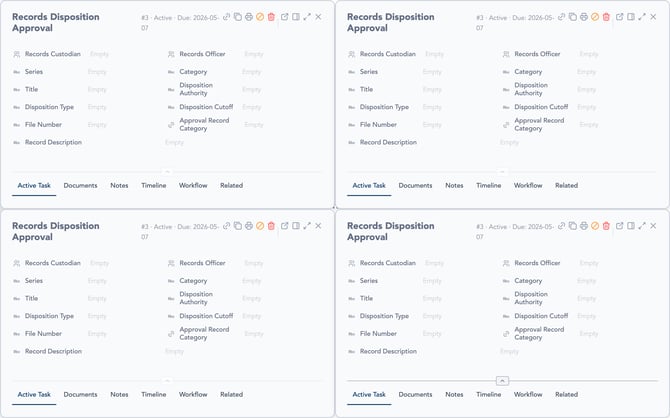
Grid Layouts
Arrange multiple dialogs into a grid view to monitor several records at the same time.
Work Across Multiple Records at Once
The Modern UI supports multiple active dialogs simultaneously.
Each dialog operates independently, allowing you to move between records without losing your place.
This makes it easier to:
-
Compare related records
-
Review documents while completing tasks
-
Keep important information visible
-
Work across several processes at the same time
Open Dialogs Full Screen
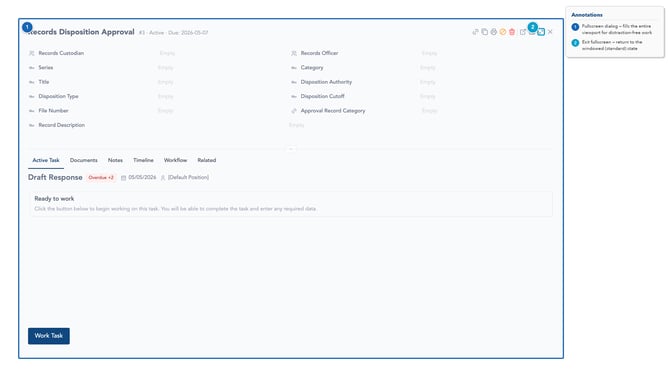
When additional space is needed, dialogs can be expanded into a larger view or opened in a separate browser tab.
This allows you to:
-
Focus on detailed review or editing
-
Reduce distractions
-
Use multiple monitors more effectively
-
Share direct links with teammates
Why Use Dialogs?
Dialogs provide a more modern and flexible way to work inside QAction.
Benefits include:
-
Reduced navigation between pages
-
Better multitasking capabilities
-
Improved visibility into related records
-
Faster access to supporting information
-
A more personalized workspace experience
By keeping your task lists and records accessible at the same time, dialogs help maintain workflow continuity throughout the day.
Best Practices
-
Keep frequently referenced records open in separate dialogs
-
Use side-by-side layouts when comparing information
-
Open supporting documents while completing tasks
-
Use full-screen mode for detailed review or editing
-
Arrange dialogs based on your workflow priorities
Frequently Asked Questions
Can I open more than one dialog at the same time?
Yes. The Modern UI supports multiple open dialogs simultaneously.
Can I resize dialogs?
Yes. Dialogs can be resized to fit your workspace and workflow needs.
Can I move dialogs around my screen?
Yes. Dialogs can be dragged and repositioned anywhere within the workspace.
What is the difference between a drawer and a dialog?
A drawer slides in from the side of the screen while keeping your current page visible. A dialog opens as a movable, resizable window.
Can I compare records side-by-side?
Yes. Dialogs can snap into side-by-side layouts or grid arrangements for easier comparison.
Can I open a record in a new browser tab?
Yes. Records can be opened in a separate browser tab for a full-page experience.
Will dialogs interrupt my workflow?
No. Dialogs are designed to help you continue working without losing your current context or navigation state.