
Create and manage personalized worklists with Views (formerly Saved Searches)
Views are a core feature of the Modern QAction UI, designed to help you quickly access the records you work with most without running repeated searches.
In the Modern UI, Saved Searches have been reimagined as Views, offering a simpler, more flexible way to organize your work and stay focused throughout the day.
What Are Views?
Views are dynamic, personalized lists of records based on the object types you select.
They appear directly in your left navigation, so your most important work is always one click away.
With Views, you can:
-
Quickly access frequently used records
-
Organize work by process, task, or object type
-
Combine multiple types of records into a single worklist
Unlike traditional saved searches, Views are automatically updated, so your results always reflect the latest data.
Create a New View
You can create a View in just a few steps:
-
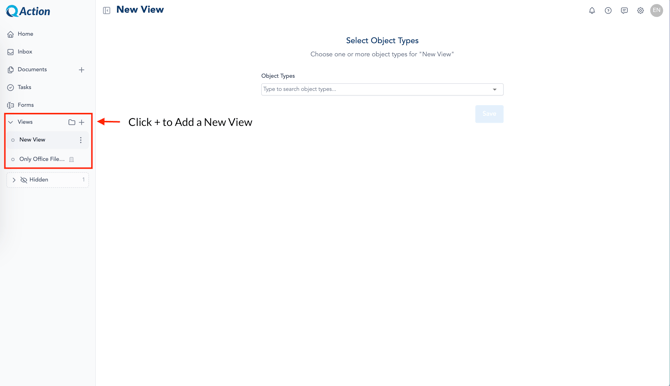
In the left navigation, locate the Views section
-
Click the ➕ (plus) icon
-
The View Builder will open
From here, you can define exactly what records you want to include.
Choose What Your View Displays
In the View Builder:
-
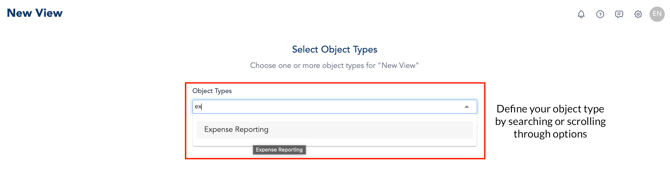
Select one or more object types
-
These determine which records appear in your View
For example, you might create:
-
A View for Expense Reports
-
A View for Legal Cases
-
A combined View that includes multiple object types
Rename and Manage Your View
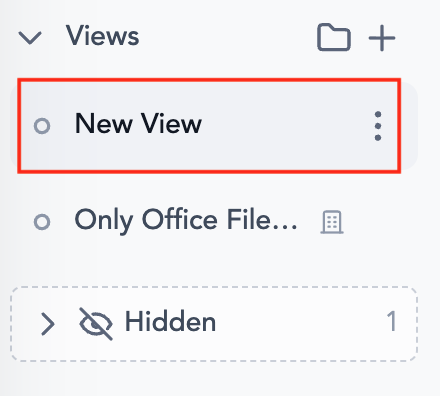
After creating a View, you can customize and manage it:
-
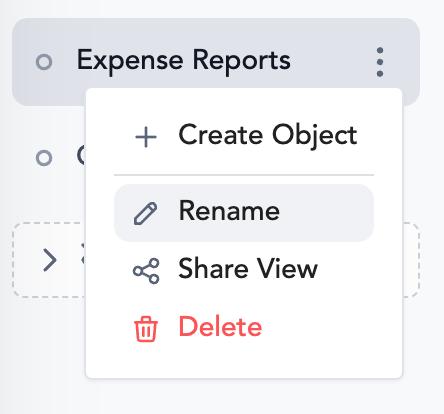
Click the three dots (⋯) next to your View
-
Select Rename
-
Enter a name that reflects your workflow
Views are:
-
Automatically saved
-
Added to your left navigation
-
Available instantly for reuse
You can also:
-
Share a View
-
Delete a View
-
Add additional object types
|
|
Why Use Views?
Views replace traditional Saved Searches with a more modern experience:
-
Always accessible from the left navigation
-
Automatically updated based on selected criteria
-
Flexible, allowing multiple types of work in one place
This reduces time spent searching and helps you stay focused on completing tasks.
Best Practices
-
Create Views for your most frequent tasks or record types
-
Use combined object types to build cross-process worklists
-
Keep View names clear and aligned to how you work