
Overview
The Modern UI transforms how you work with documents by allowing you to preview, edit, and sign documents directly within QAction.
No downloads, plugins, or external applications required.
This native experience enables you to complete document-related tasks faster and more securely, all within a single interface.
Why Use In-App Document Tools?
Working with documents in the QAction provides several advantages:
-
No downloads required – Access and work on documents instantly
-
No browser configuration needed – No plugins or extensions to install
-
Faster workflows – Move from review to action without leaving QAction
-
Improved security – Documents remain within the system
-
Centralized activity – All actions are tracked and versioned automatically
Preview a Document in QAction
When to use:
-
Reviewing content quickly
-
Checking details without downloading
How to do it:
-
Navigate to Documents or open a document from a task
-
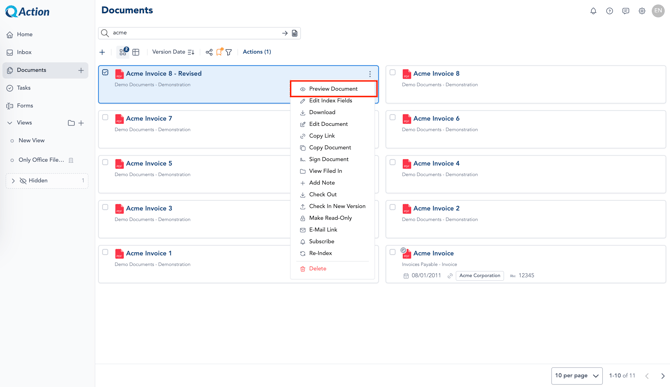
Click the name of the file OR the
 Action Menu
 -
Click Preview Document
-
The file opens in the preview viewer
What you can do:
-
Instantly open documents in a preview window or full-screen view
-
Review supported file types such as Word, Excel, PowerPoint, and PDF
-
Navigate through documents without downloading them
⚠️ Note:
-
Preview mode is read-only
-
To make changes, you must switch to edit mode (see below)
Edit and Redact Documents in QAction
You can edit and redact documents directly within QAction using the built-in editing tools.
How to edit a document
-
Open the document in preview
-
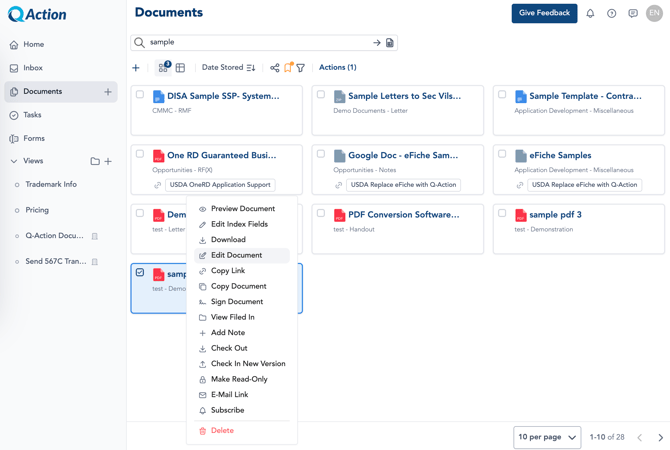
Click the
Action menu -
Select
 Edit Document
 -
The document will open in edit mode
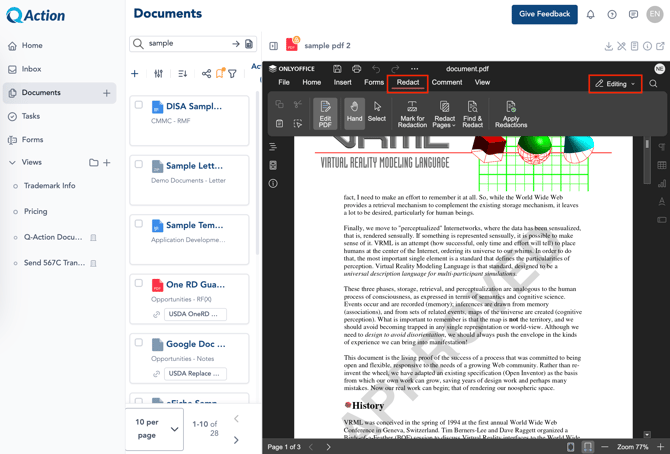
In edit mode, you can:
-
Modify document content
-
Update text or fields
-
Use the Redact tools to permanently remove sensitive information
Saving changes
-
Click File>Save to create a new version of the document
-
Version history is automatically maintained
⚠️ Note:
-
Editing is not available in preview mode
-
You must select
Edit Document to make changes -
Make sure you are in “Editing” mode to use Redact features
Signing PDFs in the Modern UI
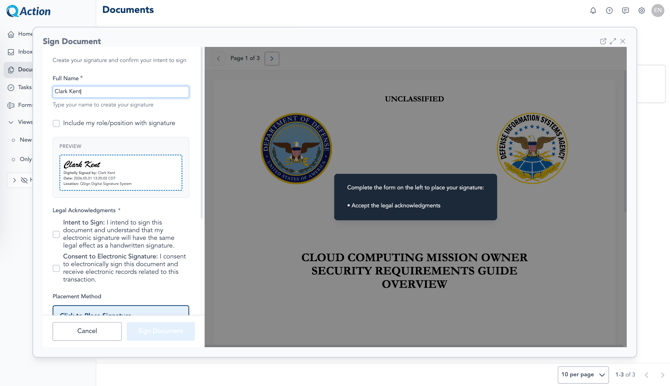
QSign allows you to sign documents directly within QAction.
Use QSign when you:
-
Want a streamlined, in-system signing experience
-
Are part of a structured workflow
-
Don’t need advanced editing tools
Steps:
-
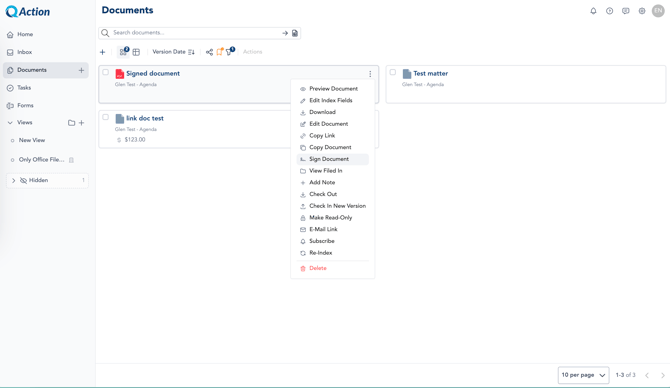
Click the
Actions menu -
Click
 Sign Document (if available)
 -
Follow the prompts to apply your signature
Signing features
-
Place signatures anywhere in the document
-
Add signer details (e.g., name, title)
-
Support for multi-user workflows
-
Automatic audit trail including:
-
Signer name
-
Timestamp
-
Document version
-
What happens after signing
-
Signature is embedded into the document
-
A new version is created
-
Activity is logged for compliance
⚠️ Note:
QSign availability depends on your organization’s configuration.
👉 Learn more about QSign:
https://support.qflow.com/qaction-qsign-electronic-signature-overview
Open Documents in a New Tab
When to use:
-
You need more screen space
-
The preview feels too small
-
You want better performance
How to do it:
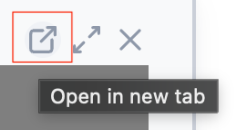
Open in New Tab is usually in top right of dialog box
-
Click Open in New Tab from a drawer or dialog
⚠️ Common Issues and Solutions
❓ I can’t find how to edit or sign documents
Solution:
In the Modern UI, most actions are available directly inside QAction:
-
Click
Actions → Edit Document to edit -
Click
Actions → Sign Document to sign with QSign
If needed, you can still:
-
Click Download to edit in Word or Adobe
-
Upload the updated version afterward
❓ I don’t see Word or Adobe options like before
Explanation:
The Modern UI no longer launches native applications directly.
Instead, you can:
-
Edit and sign directly in QAction using built-in tools
-
Or download the file to use Word or Adobe if preferred
❓ The preview won’t let me edit
Expected behavior:
Preview mode is read-only by design.
To make changes:
-
Select
Actions → Edit Document to enter edit mode
❓ There are too many clicks to edit documents
Tips:
-
Use 🗔 Open in New Tab for a full-page workspace
-
Go directly to
Actions → Edit Document instead of previewing first -
Complete edits, redactions, and signing in one session to reduce steps
❓ Pop-ups or small windows are hard to work in
Solution:
-
Select 🗔 Open in New Tab for a full-screen experience
-
Use full-screen mode (⤢) within the viewer when available
➕ Frequently Asked Questions
How do I edit a document in the Modern UI?
Open the document and select:
-
Actions → Edit Document
Make your changes in edit mode and click 💾 Save.
Alternative: Download the file and edit in Word or Excel if needed.
How do I sign a PDF in the Modern QAction UI?
You can sign documents directly in QAction:
-
Select
Actions → Sign Document -
Place and apply your signature using QSign
Alternative: Download and sign using Adobe, then upload the updated file.
Should I use Adobe or QSign to sign documents?
-
Use QSign (recommended):
-
Faster, fully in-system
-
Built-in audit trail
-
-
Use Adobe (optional):
-
Advanced editing or annotation needs
-
What is QSign in QAction?
QSign is QAction’s built-in electronic signature feature that allows you to sign documents directly in the QAction without downloading them.
Why can’t I edit documents directly in preview?
Preview is designed for viewing only.
To edit:
-
Select
Actions → Edit Document
Why don’t I see the option to sign using QSign?
QSign availability depends on your organization’s configuration.
If you don’t see:
-
Actions → Sign Document
Contact your system administrator.
Can I still upload a document after editing or signing in Adobe?
Yes. You can:
-
Download the document
-
Edit or sign in Adobe
-
Upload the updated version back into QAction
How can I avoid working in small pop-ups or windows?
-
Use 🗔 Open in New Tab for a full-page experience
-
Use ⤢ Full Screen within the viewer
What is the fastest way to work with documents in QAction?
The fastest workflow is:
-
Use in-app tools to preview, edit, redact, and sign
-
Only download files when necessary