
If you use Microsoft Office products, there is a QAction add-in that will allow you to add emails, Word documents, Excel spreadsheets, etc. to QAction from within those applications. The following are the steps for downloading and installing the Microsoft Office add-in.
Note:
- You will need local administrator privileges on the PC to perform the installation.
- Your IT department may require the installation of the add-in to be installed using their process. Please contact support@qflow.com if the add-in is not located in the QAction download folder.
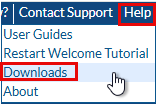
Log into QAction and click on the “Help” menu item and select “Downloads”.
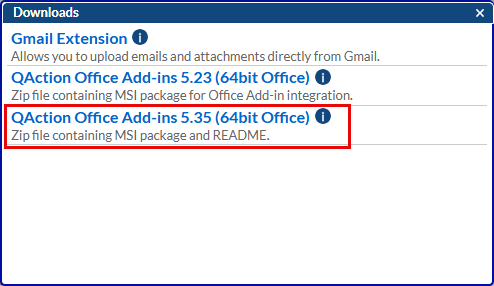
When the download window appears, select the latest version of “QAction Office Add-ins”. In this example: “QAction Office Add-ins 5.35 (64bit Office)”.
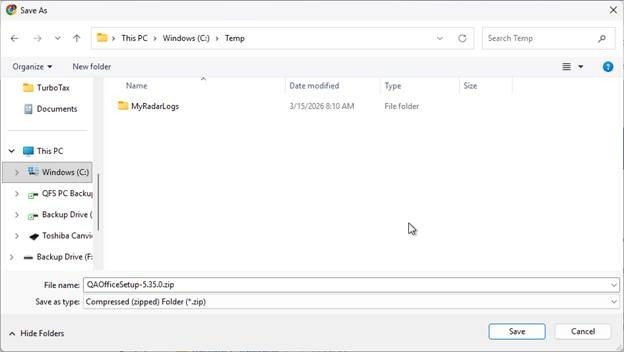
When prompted where to save the downloaded file, select a location and click “Save”.
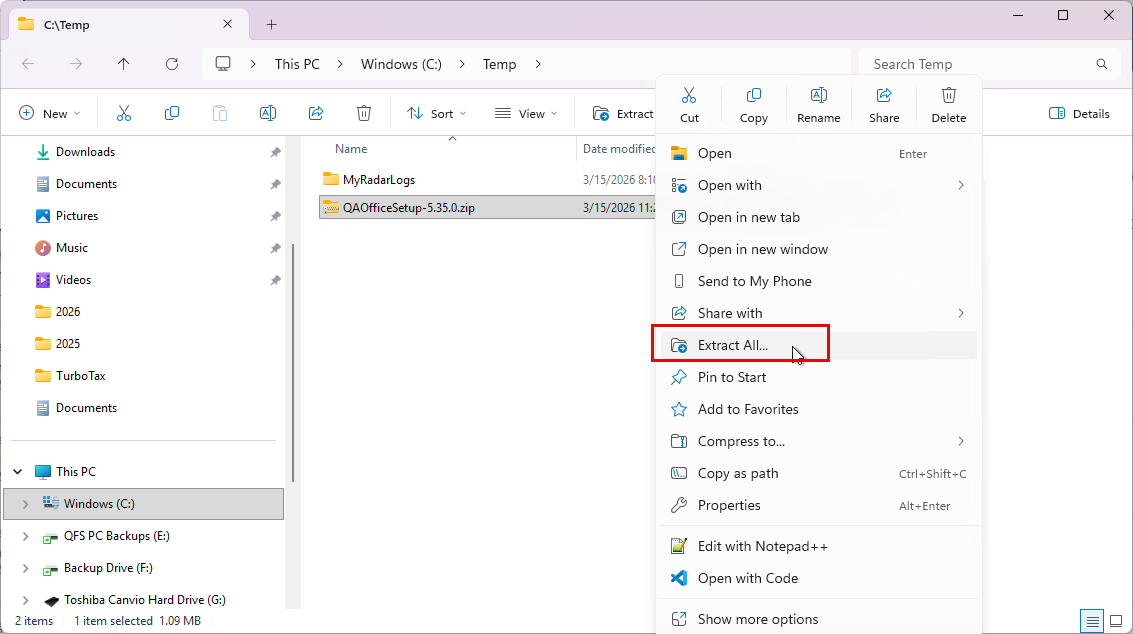
Open a File Explorer window and navigate to the location where the file was downloaded. Right mouse click on the .ZIP file and select “Extract All…”
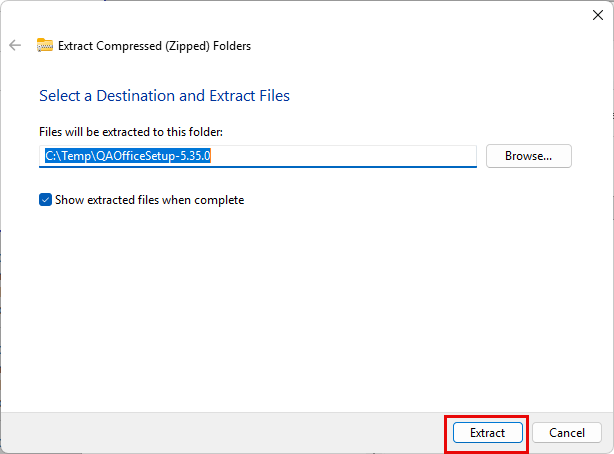
When prompted where to extract the files contained in the .ZIP file, use the suggested location and click “Extract”.
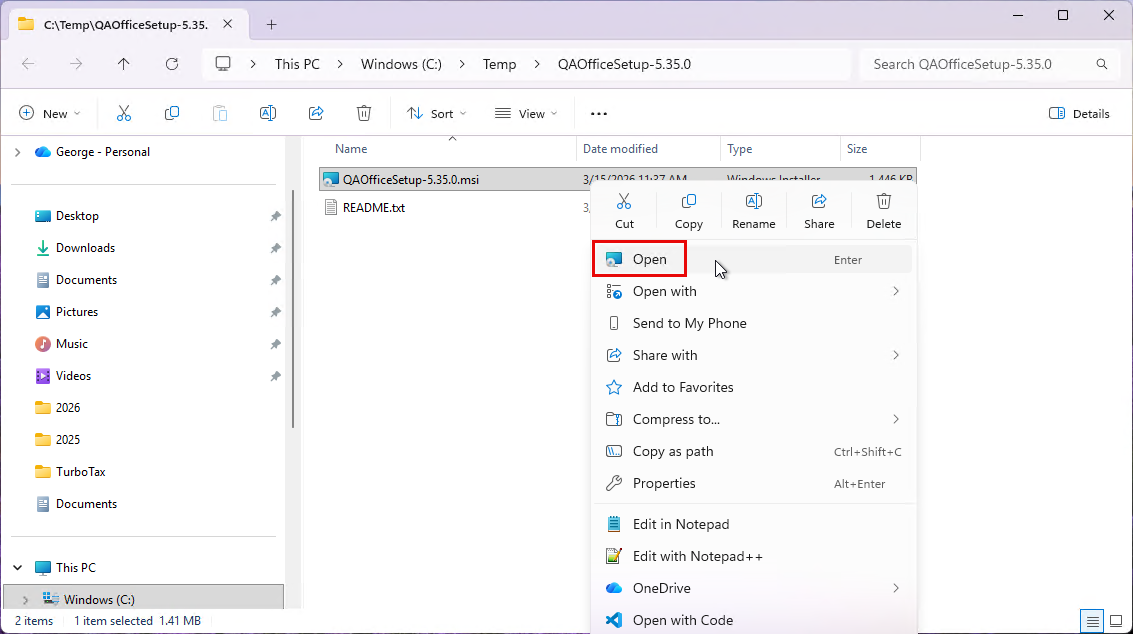
After the files are extracted, a File Explorer window will be displayed with the extracted files. Right click on the .MSI file and select “Open”.
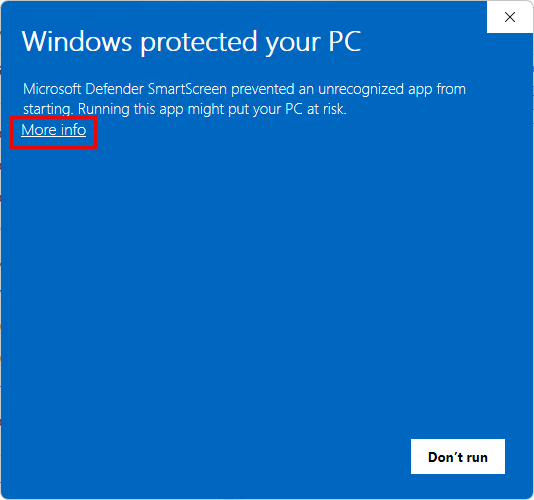
Windows Defender may display a warning message stating that it prevented an unrecognized app from running. Click the “More Info” link to see additional information.
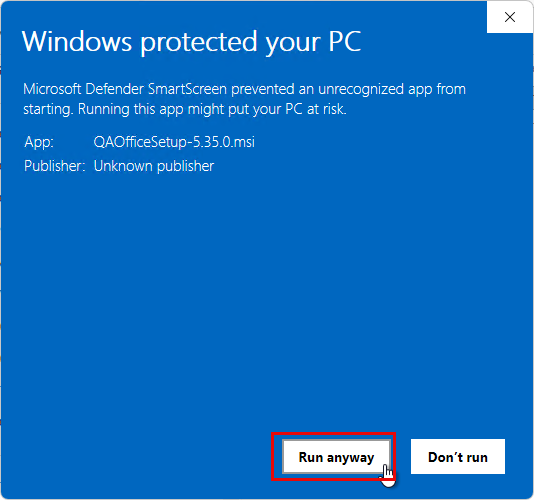
Information about the application will be displayed, click “Run anyway” to continue the installation.
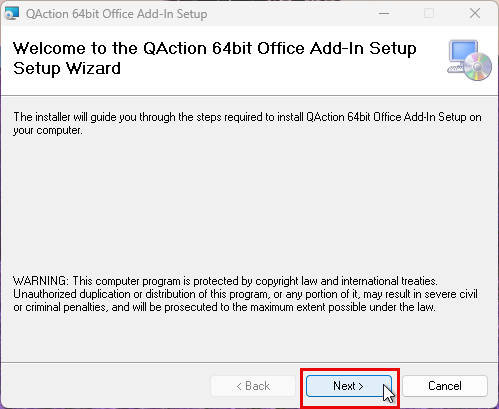
When the “QAction 64bit Office Add-in Setup” window appears, click “Next”.
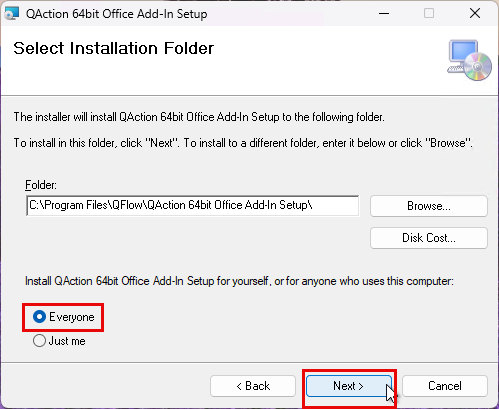
When the “Select Installation Folder” window appears, use the default installation folder, verify that the “Everyone” option is selected and click “Next”.
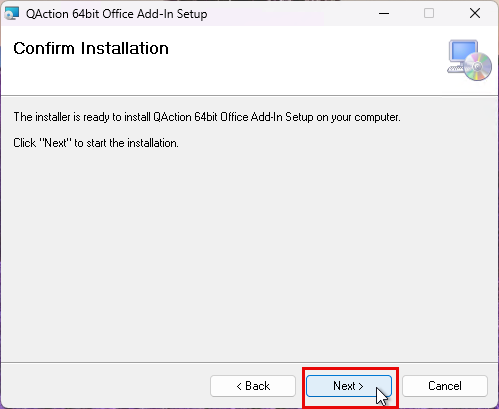
When the “Confirm Installation” window appears, click “Next”.
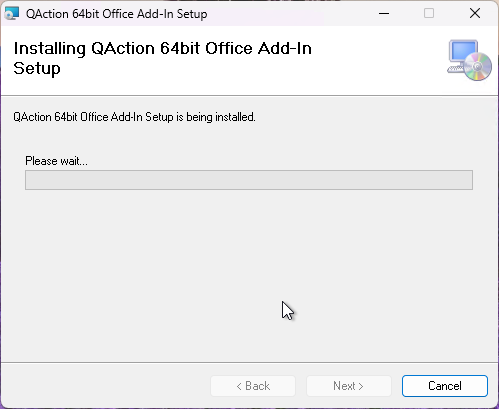
The “Installing QAction 64bit Office Add-in Setup” will be displayed showing the status of the installation.
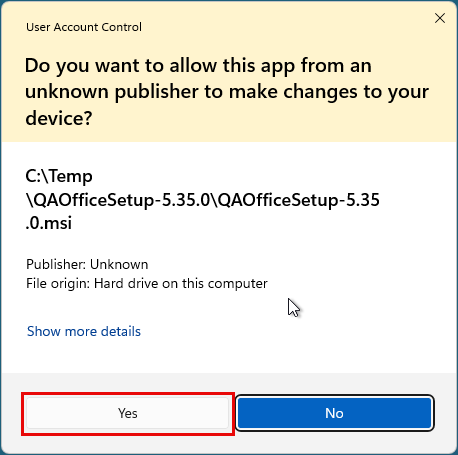
A Windows User Access Control window may display a warning message asking if you want to allow an app from an unknown publisher. Click “Yes”.
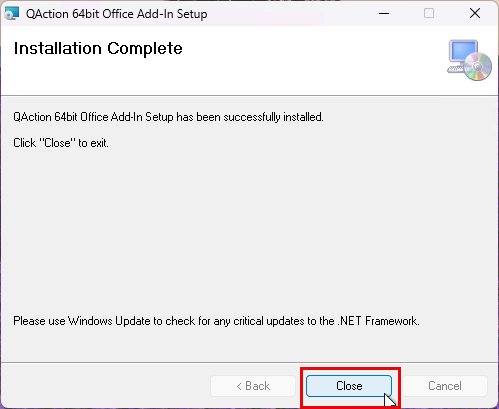
An “Installation Complete” window will appear once the installation is complete. Click “Close” to close the window.
The next time a Microsoft Office application (Outlook, Word, Excel) is started, there will be a QAction button on the ribbon bar allowing you to add documents directly to QAction.