
Applies to: QAction 5.39 · Microsoft Edge and Google Chrome
What you'll see
After the QAction 5.39 update, some documents may not open in the QAction Viewer. Instead, the viewer shows an Editor updated message saying the page will reload to apply changes.
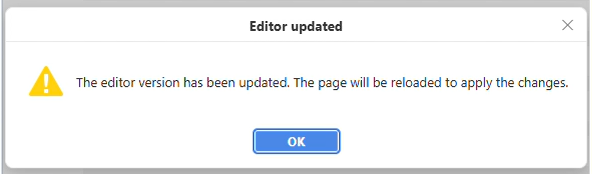
Clicking OK closes the message, but the viewer never finishes loading, and reopening the document doesn't help. Some documents may open normally while others don't.
Why it happens
Your browser is still holding cached files from the previous version of the viewer, including a background script called a service worker. Clearing them lets the browser load the current viewer.
How to fix it
- Clear your browser's cached images and files.
- Unregister the viewer's service worker.
- Close and reopen your browser.
Clearing only cached images and files won't sign you out of websites or remove saved passwords.
Microsoft Edge
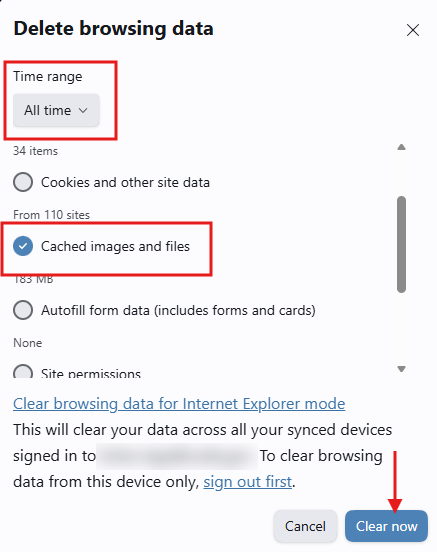
- Open Edge and press Ctrl+Shift+Delete.
- Set Time range to All time, check only Cached images and files, then click Clear now.
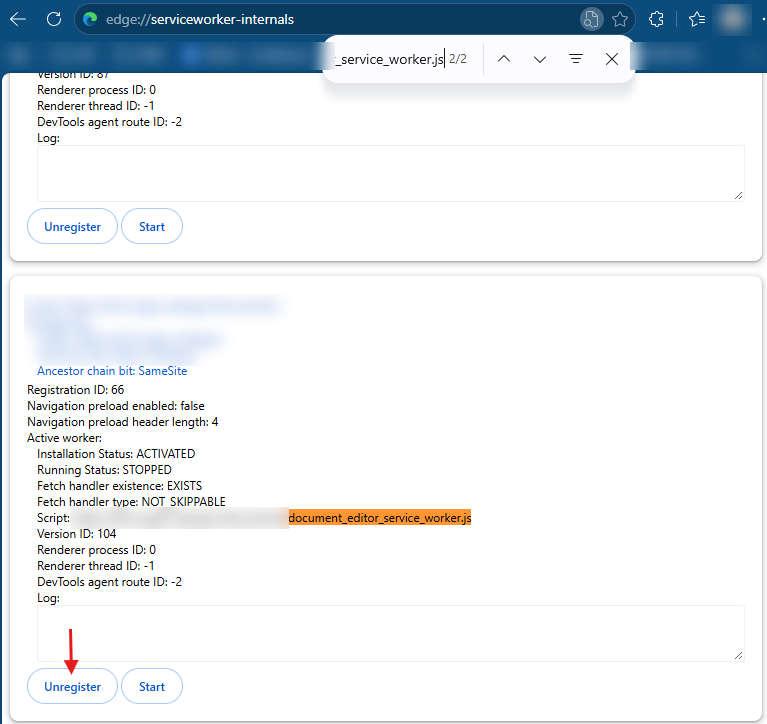
- In the address bar, go to
edge://serviceworker-internals. - Press Ctrl+F and search for
document_editor_service_worker.js. - Click Unregister under the matching entry.
- Close and reopen Edge, then open the document again.
Google Chrome
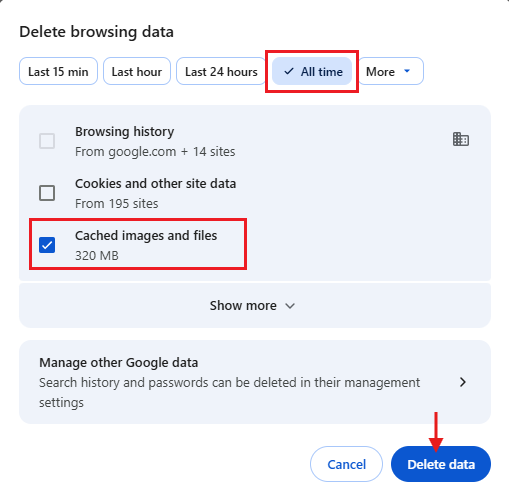
- Open Chrome and press Ctrl+Shift+Delete.
- Select All time, check only Cached images and files, then click Delete data.
- In the address bar, go to
chrome://serviceworker-internals. - Press Ctrl+F and search for
document_editor_service_worker.js. - Click Unregister under the matching entry. The page looks the same as the Edge example above.
- Close and reopen Chrome, then open the document again.
Still seeing the message?
Contact QFlow Support at support@qflow.com.