
Subscribe to a Document
This topic covers subscribing to specific events on a given document. You can also subscribe to Saved Searches. Read more about that here!
Subscribe
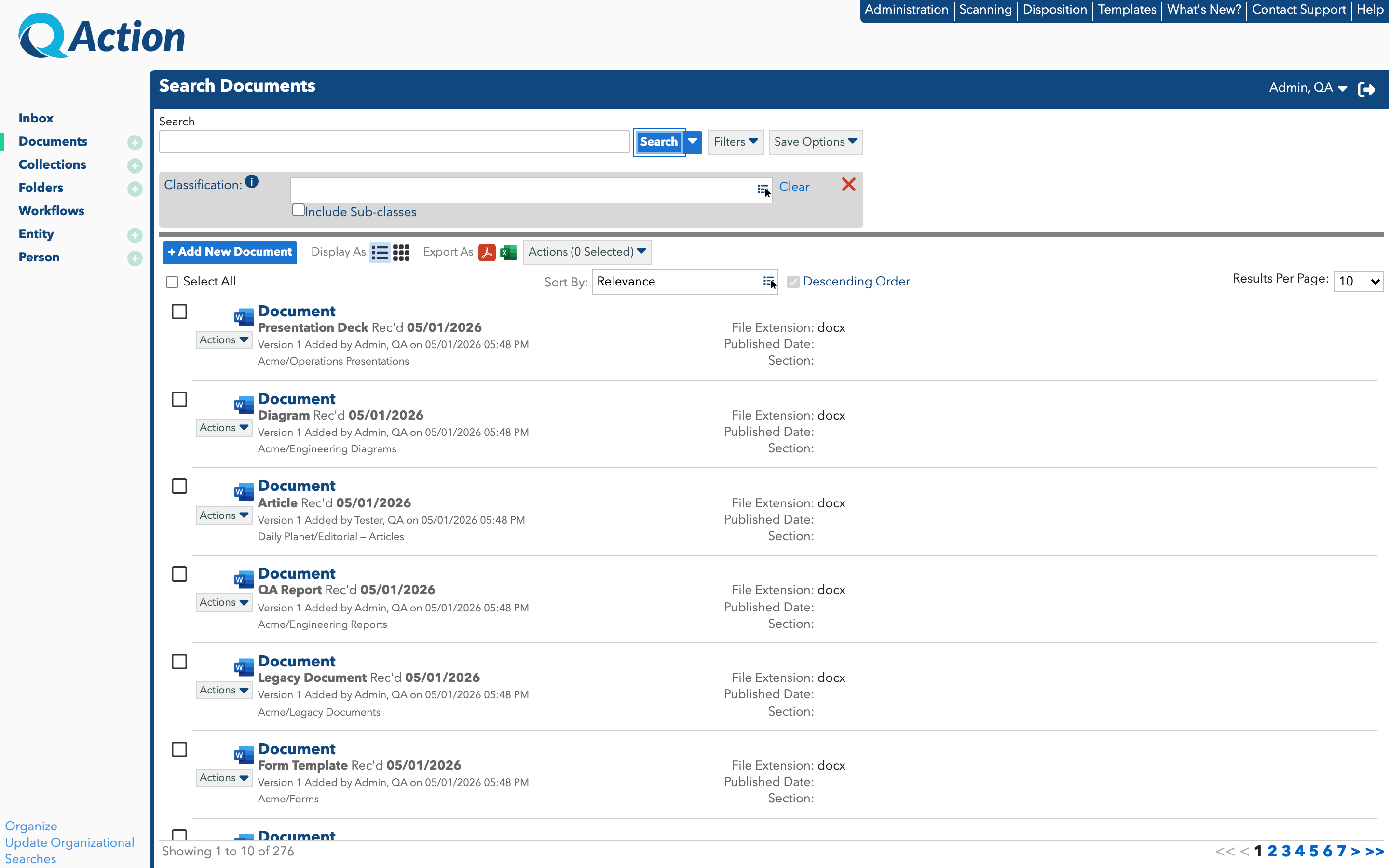
- Locate the document you want to subscribe to on a search screen or in a folder, and open the Actions menu for that document.
- Since you are not currently subscribed, there will be an option to Subscribe in the action menu.
-
Click Subscribe. This will open the Edit Subscription window where you can configure your new subscription.
- Select either Daily or Immediately from the “Notify me when” drop-down to indicate whether you want to receive a single daily digest of subscriptions or whether you want individual emails whenever a subscription event occurs.
- Then turn on the toggles for the specific events you want to subscribe to.
- Click Save. From now on, you will receive a notifications at the selected frequency when the selected events occur on the document.
- Subscriptions can be edited on the Maintain Subscriptions screen, described below. Or, you can open the Edit Subscription screen again from the Actions menu for the document at any time.
Maintain Subscriptions
-
Click on your username in the top right-hand corner to open the drop-down menu.
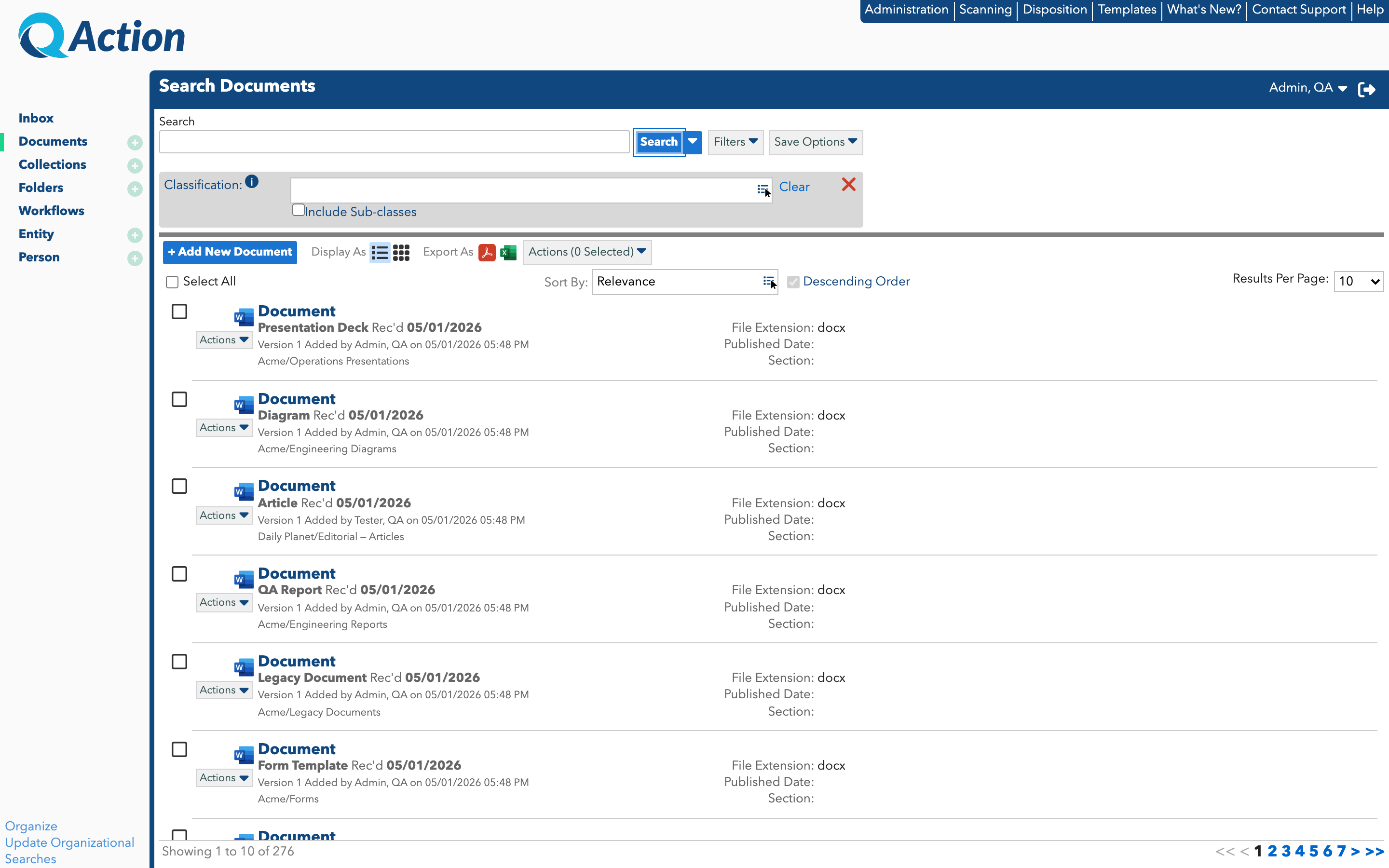
- Click Maintain Subscriptions.
- The Maintain Subscriptions screen opens.
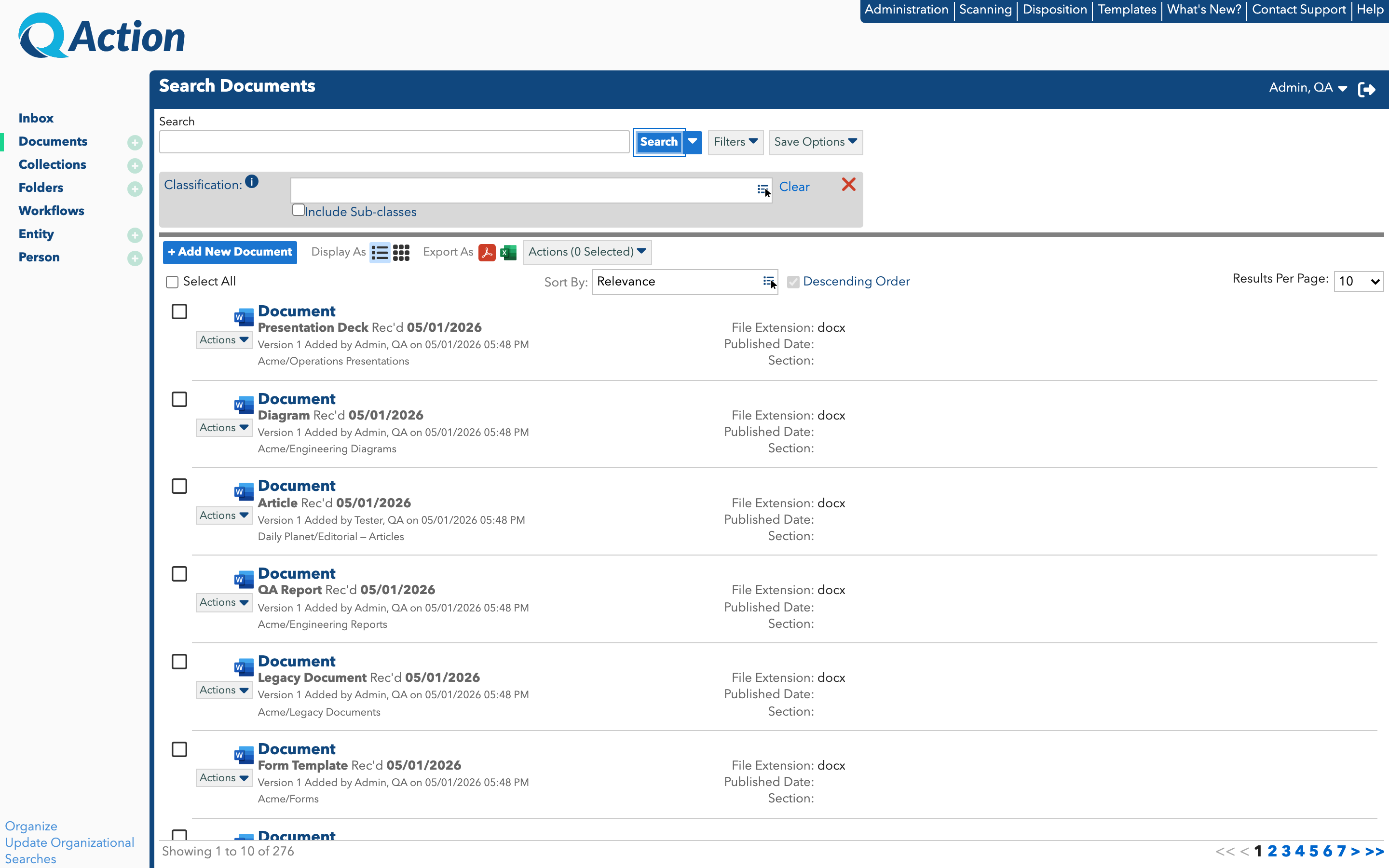
- The Maintain Subscriptions screen opens.
- To delete a subscription, click the Delete icon (
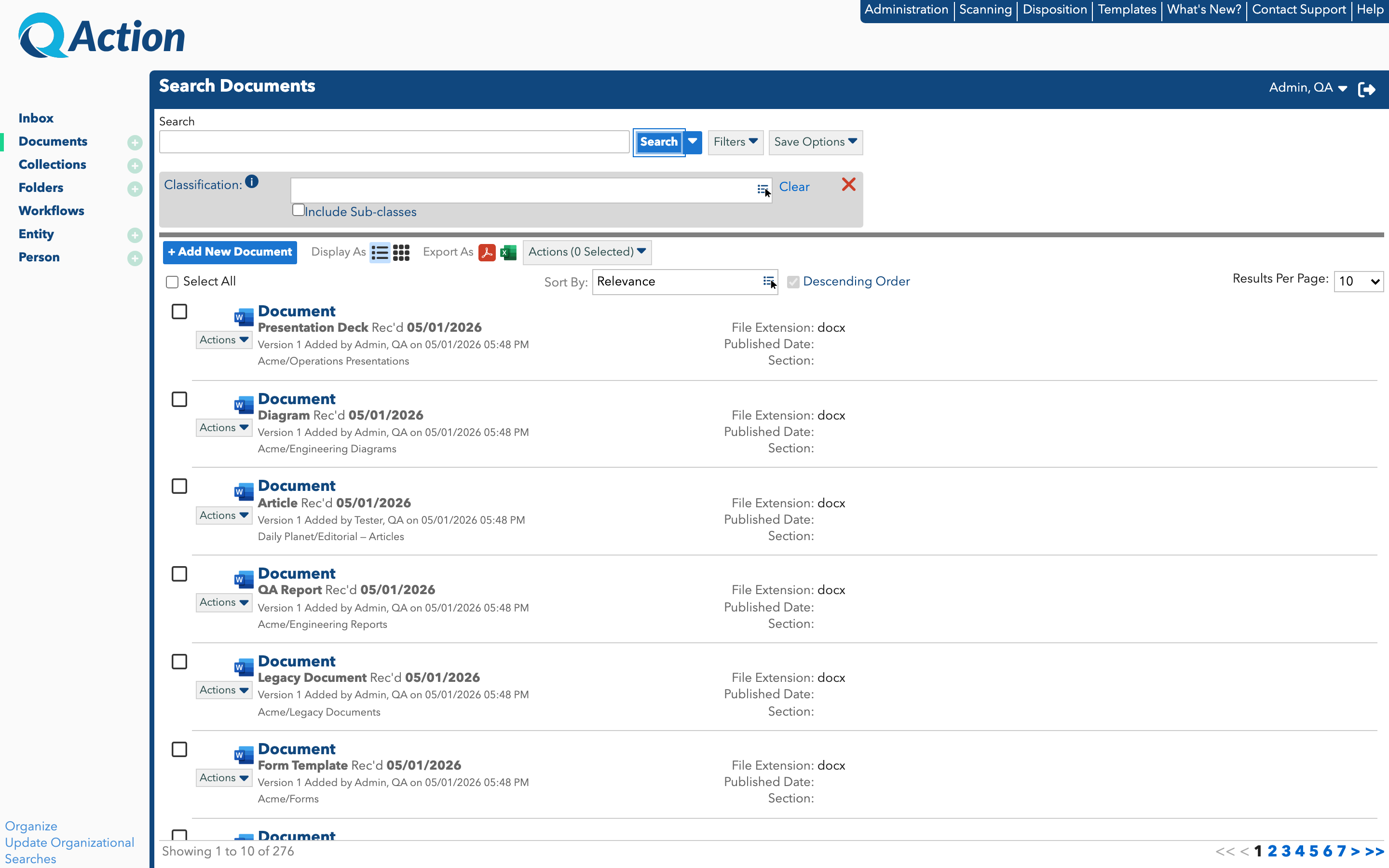 ) next to it.
- To modify a subscription, simply make the necessary changes to it and then click Save.
- Click Close when you are done making changes to your subscriptions.